These are sourcing references, not a live stock or price list. Availability, specifications, minimum order quantity, product cost and shipping require confirmation before purchase. Send the product ID, destination, quantity and specifications through the contact form on our home page.
ALLDAIGOU · PROFIT POCKET
Compare profit across six Japanese marketplaces
Estimate product gross profit, profit after selling costs and break-even prices for Amazon Japan, Rakuten, Mercari, BASE, Yahoo! Shopping and Qoo10 Japan. Save purchase costs and a product template once, then change only the sale price for your next comparison.
Includes AllDaigou presets for international freight, inspection and optional services. Clearance is ¥3,000 per shipment, divided by the batch quantity.
Exchange rate: MUFG code 069 (Chinese yuan), TTS plus ¥1. Saved reference: 23.16 + 1 = 24.16 JPY/CNY, as of 12 September 2026, 05:01 JST. Update the latest rate manually in Cost settings.
Japanese and English interface, product templates, saved analyses, CSV export, printing and complete backups.
Use offline on your phone or PC Open the tool online once and wait for “Offline ready”. Add it to your phone’s home screen, or install it with a supported desktop browser. The “Install & backup” menu also provides a standalone file for desktop use.
Your entries stay in your device’s browser; there is no cloud sync. Export a backup before changing devices. Confirm marketplace contracts, billable weight and actual taxes. Unclear tariff ranges and special routes require an actual freight quote. Results are cash-cost estimates including configured taxes, not net profit for tax filing.
NEW · 13 September 2026
Two new studios for product images and content
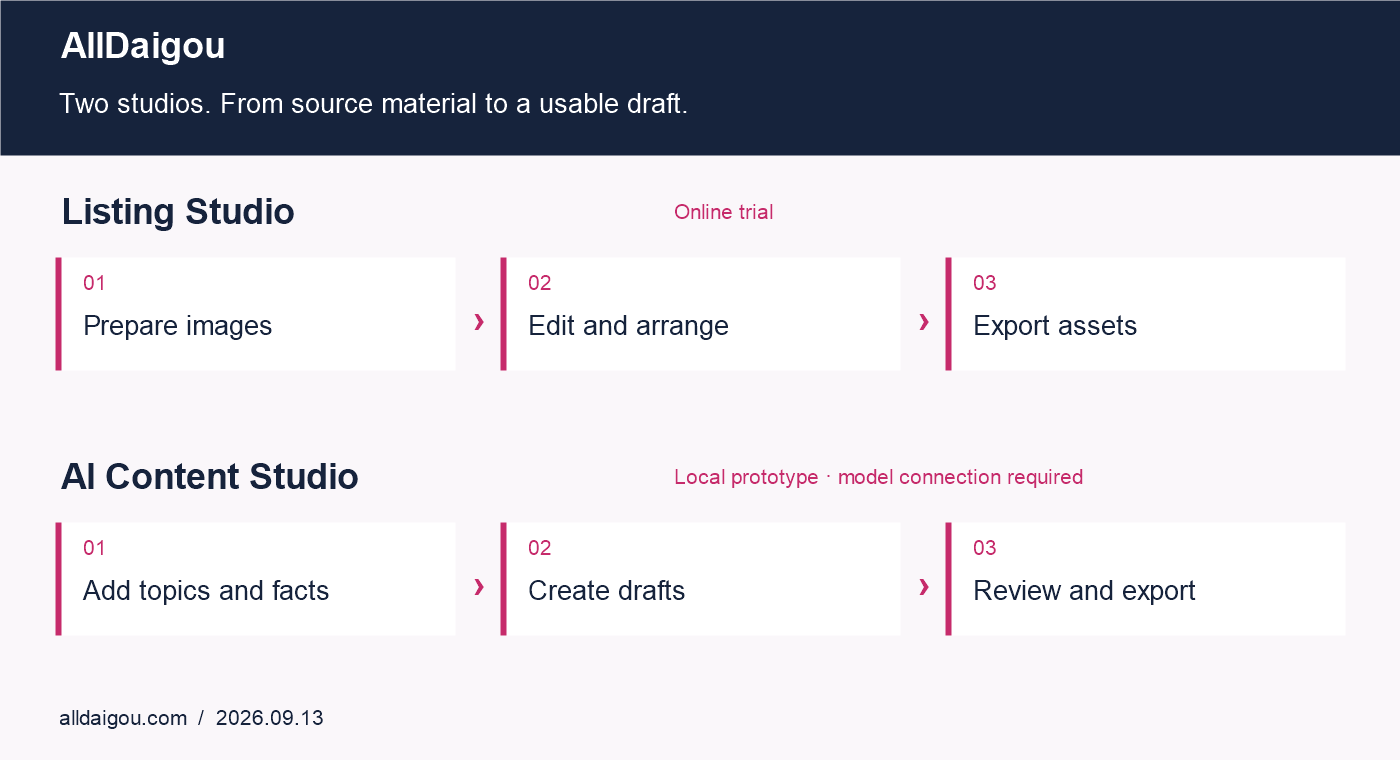
Prepare listing assets with Listing Studio, or organise source facts into content drafts with AI Content Studio. Choose the workflow that fits your next task.
Workflow illustration. Availability and setup requirements are explained below.
Online trial
Listing Studio
A browser workspace for preparing product images and templated listing copy.
Import available images from a public product-page link, or upload your own images.
Prepare white-background layouts, remove simple light backgrounds, and arrange scene layouts using existing photos.
Move, resize and rotate images; edit text and colours; undo and redo changes.
Use eight destination presets, export image bundles and prepare copy templates or CSV files.
Japanese, English, Korean and Chinese interface options, browser-local drafts and project backups.
How to try it
Open the trial, choose your interface language, and provide a product link or images you may use.
Enter product facts and select an output preset and layout.
Edit images and text, review the result, then save and export.
Copy currently uses templates. Generative AI images, free-form AI writing and full translation of product facts are not connected. Image extraction depends on the source page and cannot retrieve every image. Presets do not connect to stores or guarantee listing approval. Drafts stay in your browser.
A workspace for organising topics and verified facts into article and social-post drafts.
Add a topic, source links and a factual summary, then work from an outline to a draft.
Check topic duplication, manage a task queue and set run intervals and a daily model-call limit.
Run basic structure and citation checks, then export reviewed content as HTML or Markdown.
Configuration screens for model connections and optional delivery to a connected website.
How to get started
Contact AllDaigou with “AI Content Studio”, your intended use and preferred language.
Review a demo and discuss the local setup, model connection and interface localisation.
Prepare verified source facts, generate a draft after setup, and review it before export.
This is a local prototype, not a public online service. Real generation requires a model connection; demo mode uses fixed samples. The current interface is Chinese. Source links are not automatically read: drafts use the summaries you supply. Live website delivery has not been verified. Scheduled work requires the application to remain running. No income or search-ranking results are promised.
Setup and customisation: Terms, model costs, language adaptation and extra features for these two studios are quoted separately. The TANA pricing and trial terms below do not automatically apply.
Product ideas to source
ID 605967116944
Fleece-panel pet jacket
Chest, back and neck measurements; fabric, seams, colours and order quantity.
Open a guide to read it. To save a copy, expand the guides and use your browser’s Print → Save as PDF.
TANA · Packaging / purchasing / product CSV
Start with sample data. For real work, use Manage data to export a backup and start with an empty workspace. Packaging and purchase orders are saved in this browser; product CSV is session data.
Packaging: add boxes, bags or other materials and their stock. Link each product SKU to the quantity of material used per unit. Import shipment CSV, review deductions and confirm. Give each split shipment a unique shipment ID.
Purchase orders: create a unique PO number with supplier, currency, due date and SKU lines, or import the template. Record each partial receipt, up to the remaining quantity. Receipts update PO quantities only.
Product CSV: upload a CSV, map columns, fix required-field and price errors, and export a Shopify draft-product CSV. Review it in Shopify before publishing. The tool does not connect to your store.
Use the supplied templates without changing their headers. Back up browser data before changing device or clearing storage.
TANA LOT · Purchase-batch profit
Open a workspace and keep its recovery key private. Export a JSON backup regularly; a recovery key is needed to reopen the same saved workspace.
Choose the ledger currency, then create a purchase batch with SKU, quantity and unit cost. Enter freight and other landed costs. Allocate shared costs by quantity or value, and review per-unit cost.
Record sales against the correct batch, including sales revenue and applicable selling costs. Record returns against the relevant sale so that quantities and profit stay consistent.
Read realized profit separately from the value of unsold inventory. Review batch details and export records for reconciliation. Currency conversion uses the values you enter, not live exchange rates.
This is a management tool; figures are not a tax return or certified accounting report.
TANA STOCK · Import → review → update → export
Try the sample workspace. For your own data, create a separate workspace, keep the recovery key private and export a JSON backup before major changes.
Import your master stock CSV/TSV. Select the SKU and quantity columns. Keep unique master SKUs; original extra columns are preserved. Excel files must first be saved as CSV.
Map each channel SKU to the exact master SKU. Import order files and choose the channel, order ID, SKU, quantity and line ID where available. Remove cancelled or returned orders beforehand; the system does not automatically filter order status.
Review new, duplicate and blocked rows. Resolve unknown SKUs, conflicts and stock shortages before confirming. Duplicate identity uses channel + order + line ID, or SKU when line ID is absent.
Confirm to deduct stock. You can undo an entire import, or enter a stock adjustment with a reason. Review the history after any correction.
Import a platform stock template, map columns and set a safety buffer. Exported availability is max(0, master stock − buffer). Unmatched platform rows remain unchanged and need manual review. Download the update file and difference list, then upload through the platform’s own process.
File-based workflow: no real-time store sync and no guarantee against overselling. UTF-8 / Shift_JIS CSV or TSV; up to 5,000 rows, 60 columns and 700 KB per file. Keep backups and review platform requirements before upload.
 ID 605967116944
 ID 595067047966
 ID 594026861458
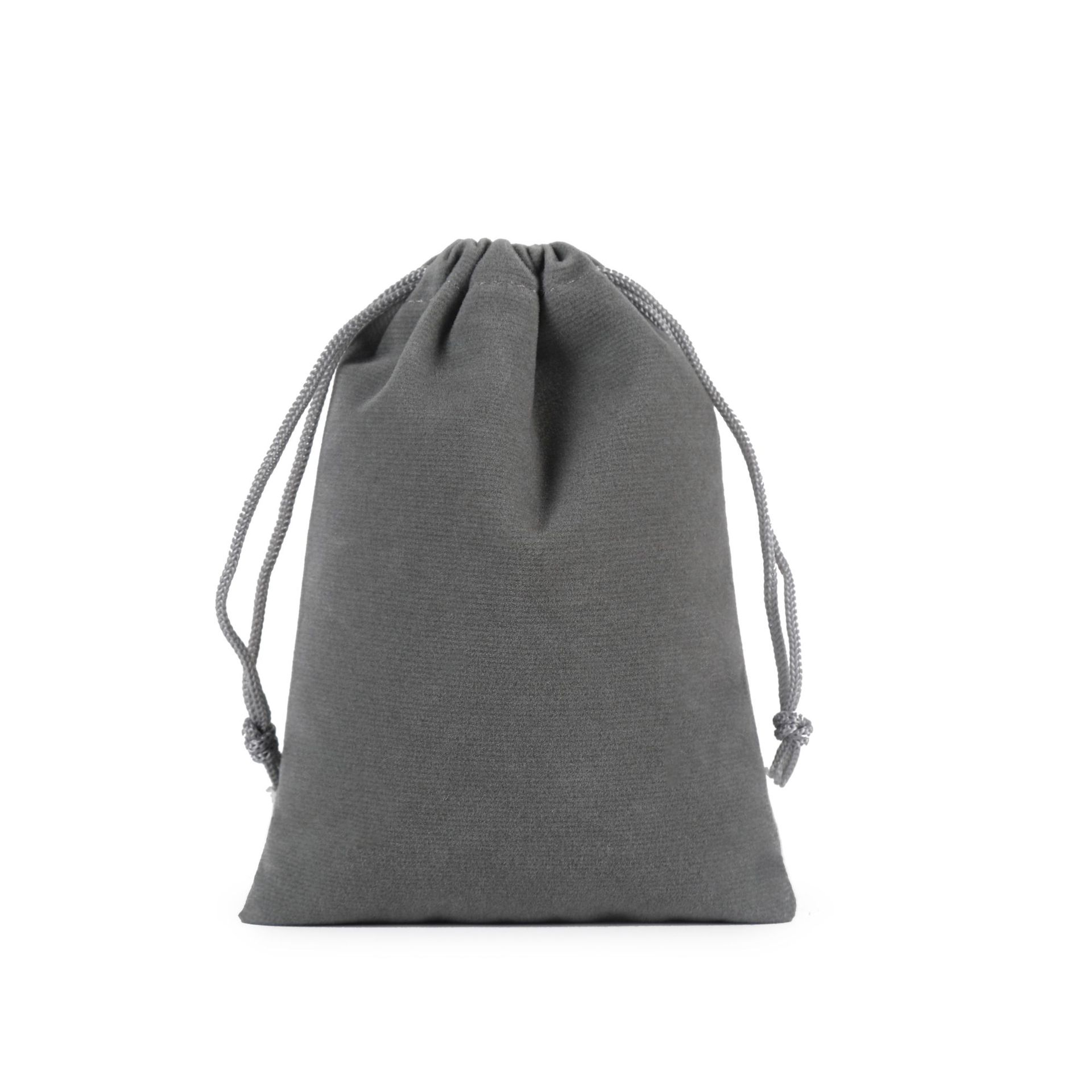 ID 538181947495
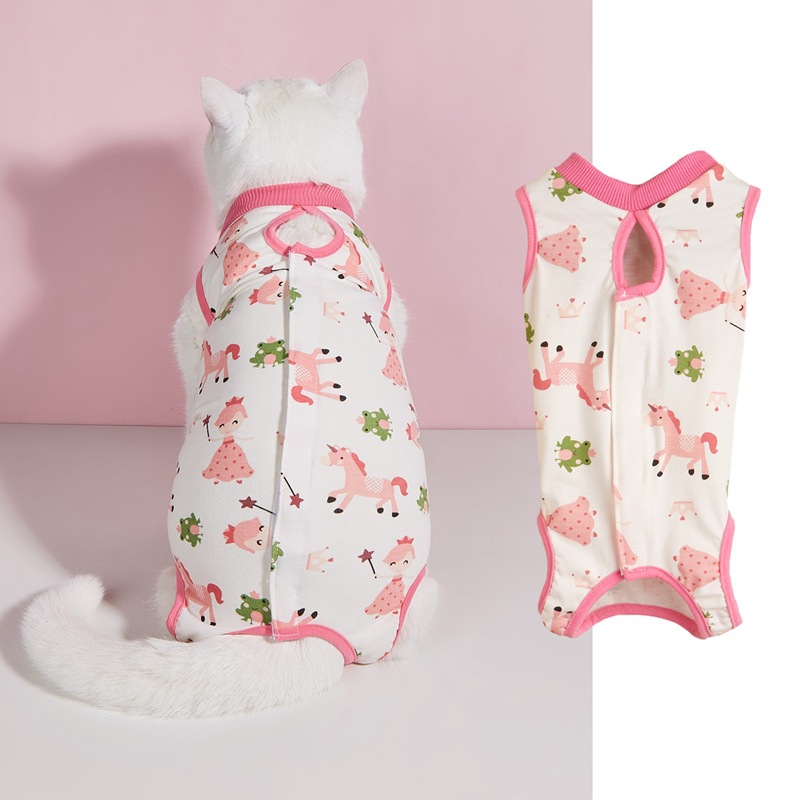 ID 734989685076
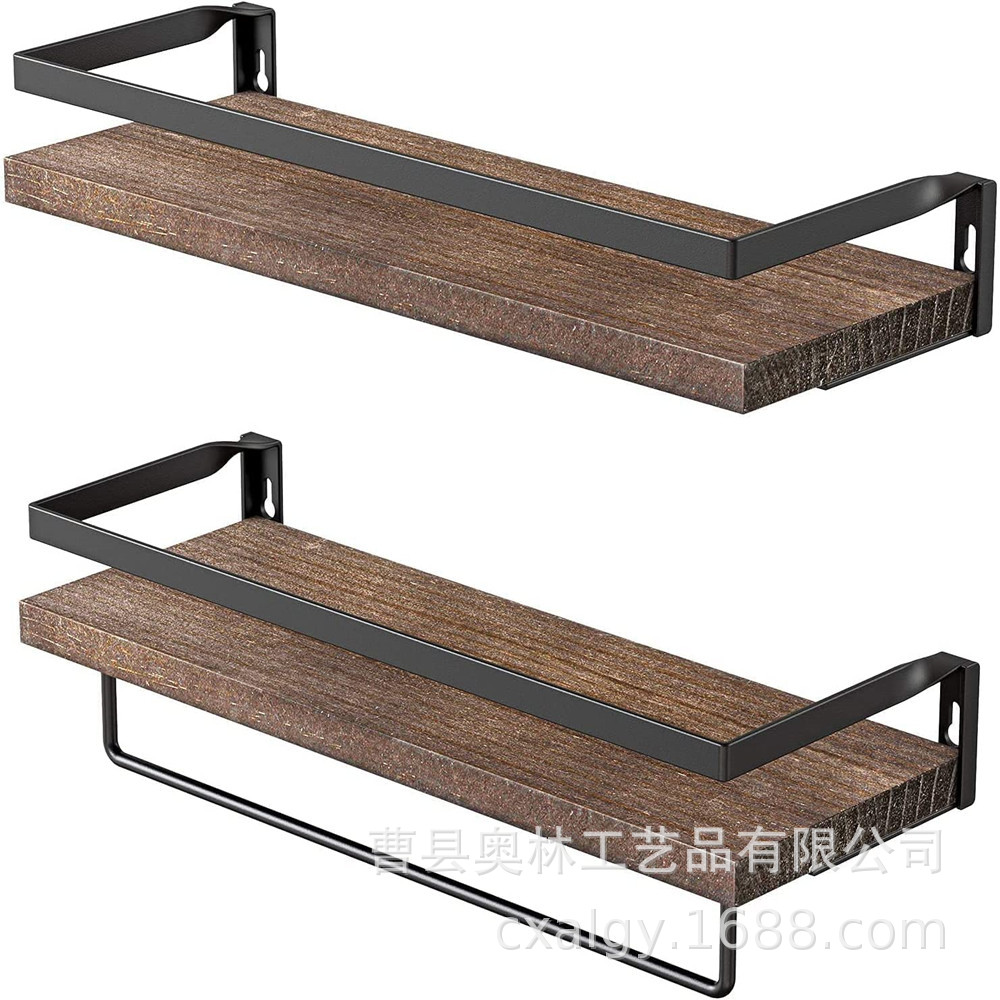 ID 675337927665
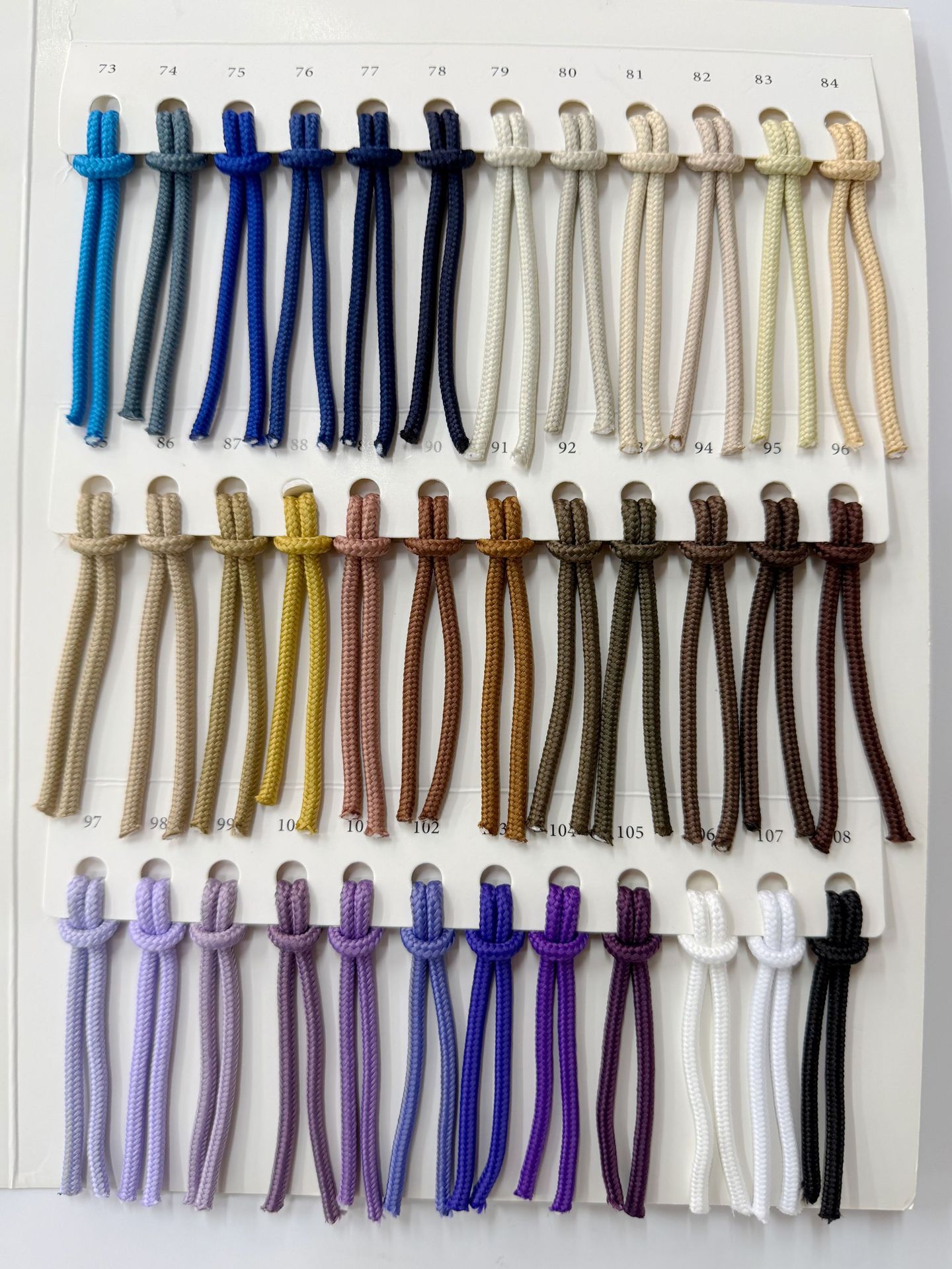 ID 953052599984
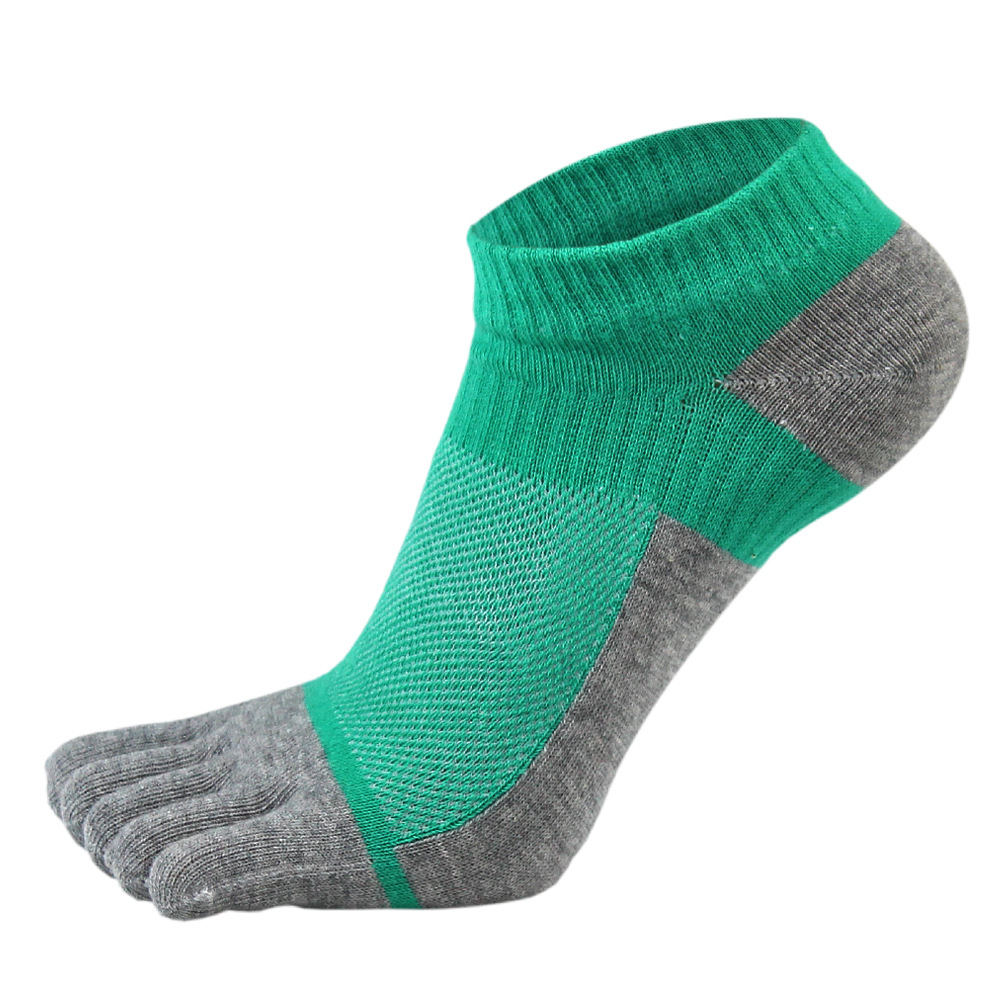 ID 551021816753
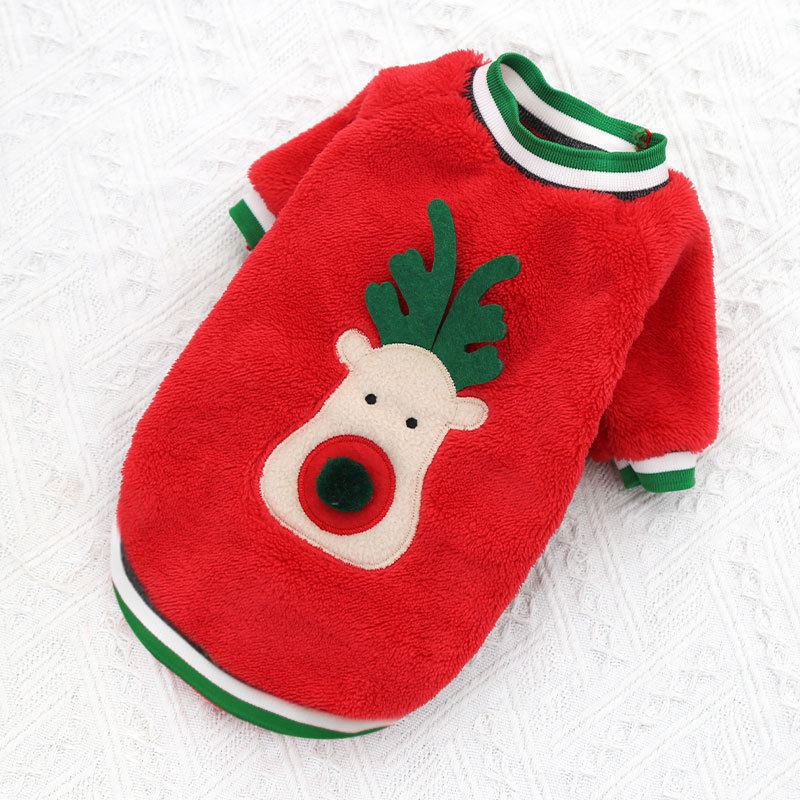 ID 652695763743
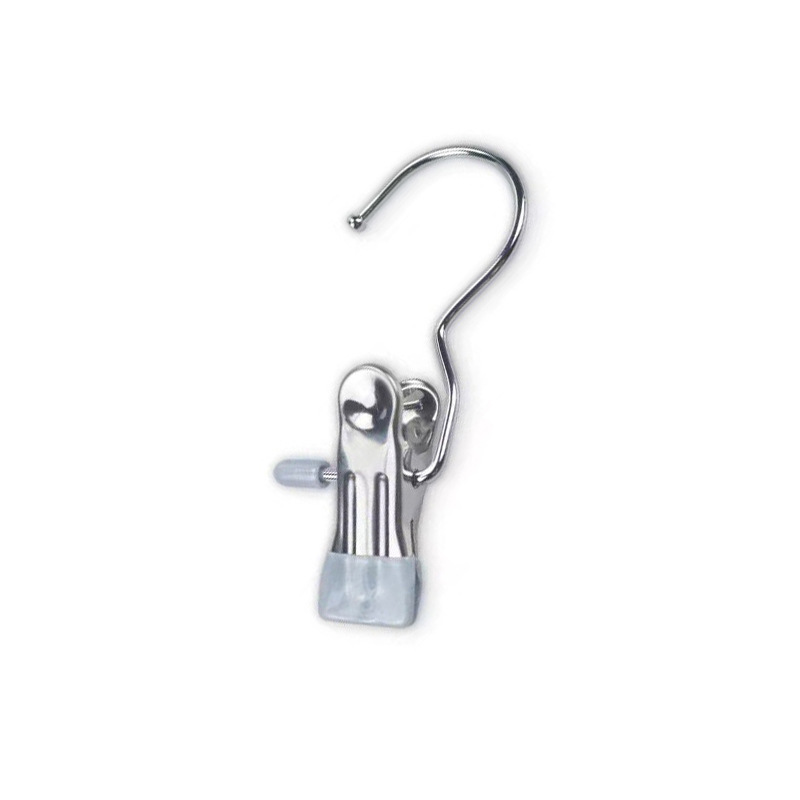 ID 835888856075
 ID 774500418383
 ID 688964958467